Current Articles | RSS Feed RSS Feed

How to Manage Agile with Assembla: Tutorials

Posted by Jon Friedman on Wed, May 29, 2013


How do you plan, manage and close Scrum sprints with Assembla?

Stabilize a Scrumban iteration? (And what is "Scrumban"?)

Manage the tasks in a Kanban or lean Continuous Delivery process?

Assembla has very flexible tools for managing Agile (and non-Agile) development processes. So flexible, that it's not always obvious how to manage tasks for a specific Agile methodology.

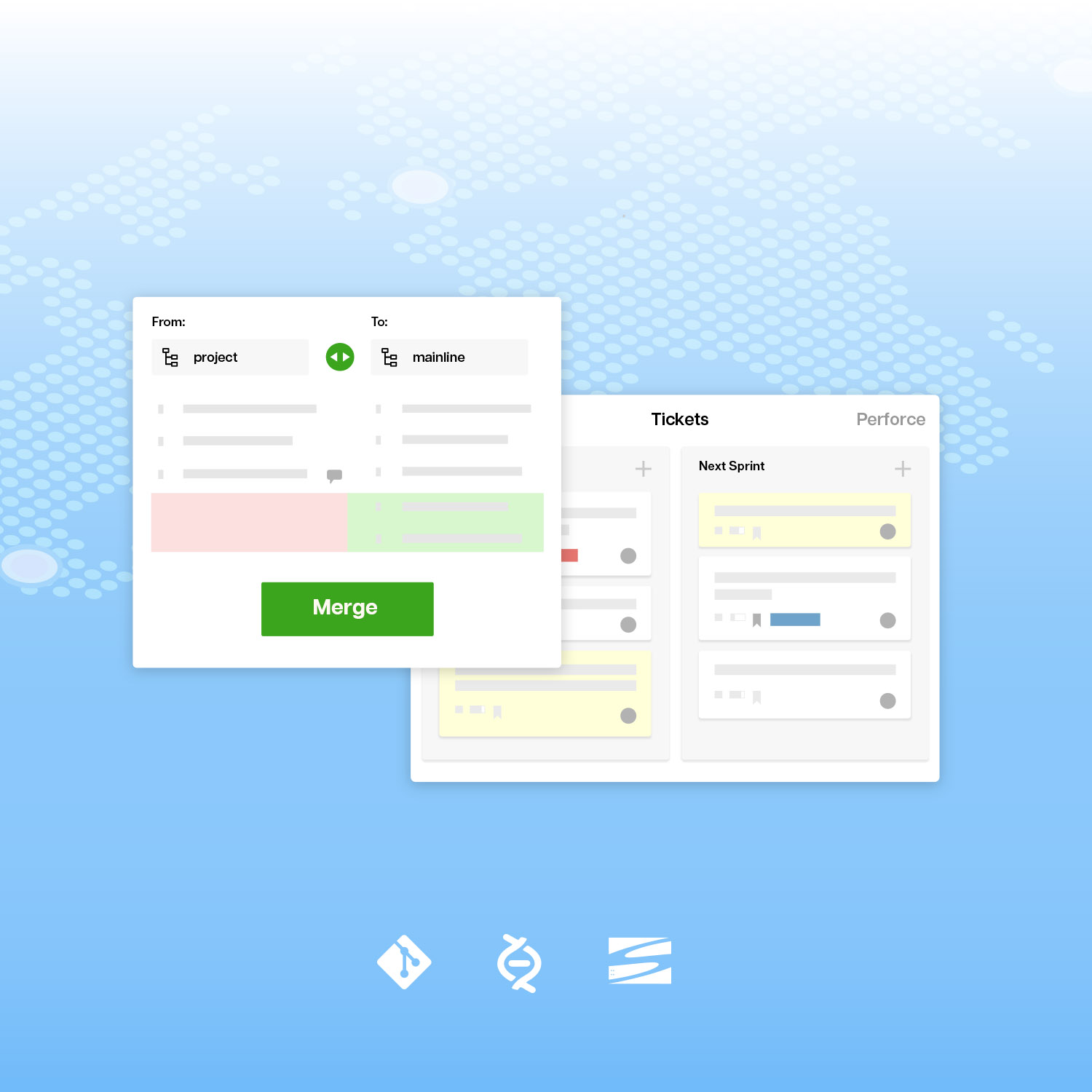
That's why we have created three online tutorials that walk you through how to manage Scrum, Scrumban and Kanban processes using Assembla's new Renzoku feature set.

Tutorial screen

You can find the tutorials here:

How to Manage Scrum with Assembla

How to Manage Scrumban with Assembla

How to Manage Kanban/Continuous with Assembla

By the way, Scrumban uses periodic releases, like Scrum, but adopts some lean practices from Kanban. Read about it here.

3 Comments Click here to read/write comments

The Cumulative Flow Diagram: Your Most Valuable Management Report?

Posted by Jon Friedman on Wed, Feb 20, 2013


The Cumulative Flow Diagram (CFD) is an extremely valuable management report. It gives you an “at a glance” picture of key process variables such as velocity, WIP and ticket cycle times. It can help you release more features faster by identifying bottlenecks and problems in your development process.

In Assembla it takes less than a minute to generate a CFD with your own ticket data.

In this blog post we will show you how to create a CFD, measure velocity and find bottlenecks in your development process. In the next post we will discuss cycle times and how the CFD can warn you about scope creep and other process problems.

Generate Your CFD

Cumulative Flow Diagrams are one of the management reports available as part of the Assembla Tickets tool.

To create a Cumulative Flow Diagram based on your ticket activity, just 

  1. Click on the Tickets tab.
  2. Click on the Metrics subtab.
  3. On the list of reports, click on Cumulative Flow Diagram
  4. Select the Milestone, Start Date and End Date and click the Update button

How to generate a CFD


What is on This Graph?

You will see a graph that looks somewhat like the one below. It shows the number of tickets in each of you status categories, for the milestone and the time period you have selected. 

If you draw a horizontal line at any point on this graph you will see a snapshot of your tickets on a given date (how many with status “New,” “In-Progress,” “Test,” etc.). In fact, if you move your cursor along the top boundary of any layer a popup box will list the number of tickets in that category on each date.

So the CFD is really just a picture of your tickets by status over time. But this picture can tell you a lot about your development process. 

Example of a CFD

Note: In your graph the shape of the layers may differ from Figure 1 depending on whether your development process is based on iterations and sprints, or on a continuous flow. You can see “ideal” Cumulative Flow Diagrams for Scrum, ScrumBan and Kanban processes in Andy Singleton’s blog post: Scrum + Kanban = ScrumBan, an Easy Scrum Upgrade.


The Departure Rate (Velocity) Helps You Project Completion

The bottom layer on the graph (usually labeled “Fixed,” or “Done” or “Completed”) shows the number of finished tickets at different times. The upper boundary shows the cumulative number of tickets completed or “burned up” in the iteration or milestone. 

The slope of this line is the “departure rate”; that is, the average number of tickets completed per time period. In Kanban and other flow process this is usually called the “velocity” (in this diagram measured in tickets completed rather than points).  Either way, it is a measure of throughput and productivity.

The departure rate can help you estimate:

  • The time needed to complete the current milestone.
  • The time and resources needed to complete future projects with a given number of tickets.

Of course, these estimates are not going to be exact, because different tickets require different amounts of work. But over time they should average out and let you make rough projections. (Also, if you have a few very large tickets you should try to find ways to break them up into smaller ones.)

In addition, changes in the departure rate might indicate problems with your development process. For example, in diagram below, why were so few tickets completed between 2012/11/12 and 2012/11/26? There might be a good reason, but the CFD clues you in on where to look for possible issues.

By the way, the upper boundary of the top layer on the CFD represents new tickets arriving into the milestone, so the slope of that line is the “arrival rate.” 

departure and arrival rates


WIP Levels Show You Bottlenecks

Identifying and eliminating process bottlenecks is a critical element of continuous improvement.

In the diagram below, the red vertical line represents work in process: the cumulative number of tickets accepted into the process but not yet completed. 

This information is useful because you can see how much work needs to be done at each level; for example how many tickets haven’t been started, how many are in progress, how many need to be tested, etc.

But even more important, you can see where your process developed bottlenecks. Those are at the places where a “boa constrictor” suddenly becomes fat. For example, in this diagram the “Deploy” layer goes from very thin to very thick between 12/11/26 and about 2012/12/07. It looks like something went wrong during this period and the imbalance in the process was only gradually worked out towards the end of the diagram.

View WIP and spot bottlenecks

Note that the cause of the problem may well be in the process step below the thick layer. In this diagram the bottleneck in the “Deploy” layer might have been caused by problems preparing new features for deployment, or by a constraint on actually deploying them and accepting them as “Fixed.” (If you “push” tickets, then the problem is likely to be in the fat layer; if you have a “pull” system it is probably in the lower or receiving layer).

The CFD makes it much easier to see when and where the bottlenecks started, so you can investigate the root causes and fix the underlying problems. 

In our next post we will look at cycle times and how to the CFD can help identify scope creep.

3 Comments Click here to read comments

Planner is now the default Tickets view in new spaces

Posted by Peter Farlow on Tue, Jun 12, 2012


We changed the default Tickets view in new spaces to Planner.  New users will land on the Planner, and hopefully get started easily.

You can change the default view for your team to List, Cardwall, or Planner

* List:  This is the old default.  You can use the list filters to configure views by milestone, team, component, user, and make your own containers and process.

* Cardwall: The "Current" column in planner will show up on the Cardwall, which makes Cardwall useful for your contributors.

* Planner.  See your New, Backlog, and Current tickets on one page, and prioritize them.

How to set the default view?  Within the Tickets tool, go to the "Settings" tab.  Under settings, go to the "Default Views" tab on the left. By default, the land on planner option will be selected. Select "Land on Ticket List" and then update your settings. Now, when you go to the Tickets tool, your team members and you will see the List view instead of Planner.

2

1 Comments Click here to read comments

Webinar: Accelerate with Scrum, Kanban and Scalable Agile

Posted by Jon Friedman on Fri, Mar 02, 2012


Join us for a Webinar on March 13 to hear about combining Scrum and Kanban from agile expert Damon Poole, and see a preview of the upcoming "Simple Planner" view of Assembla tickets, which supports both approaches.  Register at: https://www1.gotomeeting.com/register/396697960

Time: Tuesday March 13, 2012, 2:00 pm EDT (UTC -4)

Accelerate with Scrum, Kanban and Scalable Agile

Damon Poole will show you how to accelerate software development by combining the best features of Scrum (with fixed-length sprints), Kanban (continuous flow with rapid completion of each selected task), and Scalable Agile (multiple contributing teams working on a big project). Damon will describe how to introduce Kanban into a Scrum process, how to accelerate development with “One Piece Flow”, and how to coordinate the work of multiple teams.

Andy Singleton will preview two soon-to-be-released features of Assembla. The “Simple Planner” view of Assembla tickets with an AJAX UI that will allow you to move effortlessly between Scrum iteration planning and Kanban. The Advanced Merge Request feature that can help you manage continuous development and release.

Register

The Presenters

Damon Poole is a widely-recognized Agile expert. He founded AccuRev, where he created multiple Jolt Award winning products. He writes and speaks frequently on Agile development and is the author of “Do It Yourself Agile.” He has consulted for industry leaders including Ford, Xerox, Orbitz, Texas Instruments and Verizon Wireless, and has trained hundreds of people on Agile methodologies.

Andy Singleton s Founder of Assembla. He previously founded PowerSteering Software and Cambridge Interactive and has built more than 20 new software and Web products.

3 Comments Click here to read comments

Setting Up Git on Windows in Four Easy Steps

Posted by adam feber on Thu, Feb 02, 2012


Introduction

Setting up Git can be intimidating, especially for those that are trying a version control system for the first time or moving from Subversion. It used to be the case that Git was a huge hassle to install and use on Windows. However, nowadays it's super easy to use Git on Windows either through Git Bash, if you're a fan of the command line, or if you prefer a graphical interface, through programs like TortoiseGit. Below we'll show you how to set everything up and connect it with Assembla.

Table of Contents

  1. Download and Install Git for Windows
  2. Download and Install TortoiseGit (Optional but recommended for first timers)
  3. Generate SSH keys
  4. Link SSH key with Assembla

Prerequisites

  1. Assembla Git repository - sign up if you haven't already, Git and all our other project management tools are totally free for teams up to 3 people.
  2. A strong desire to install Git on Windows.
  3. That's it, let's go!

1. Download and Install Git for Windows

To get things started, you'll need to download and install Git for Windows. You can download it here. If you're unsure of which one to choose, just go with the full installer. After downloading, run the installer.

  git setup wizard
If you have PuTTY/TortoiseSVN installed, you may see this screen, otherwise just ignore this. Regardless, use OpenSSH to make things easy. 
 

SSH Executable

Complete Setup Wizard

Download and Install TortoiseGit

This step is optional. If you are comfortable using the command line for interacting with Git, you do not need to install TortoiseGit.

Next up, let's download and install TortoiseGit.
  tortoise1

tortoise7
We'll need to configure TortoiseGit - to do this, right click anywhere on your Desktop, select "TortoiseGit" and then "Settings."

tortoise8
Find "Git" and then click on "Config" from the menu on the left. Then fill in your Name and Email, making sure to use the same email that you used to sign up for Assembla.

Don't forget to click OK when you're done.
 
tortoise9

Great, now TortoiseGit is all set!

Generate SSH keys

There's two ways to generate SSH keys:
  1. If you installed TortoiseGit, use the method directly below. 2. If you only installed Git on Windows and are not using TortiseGit, jump to the "Git Bash SSH Keys" section.

TortoiseGit SSH Keys

SSH creates a secure connection from your computer to Assembla, making sure that you are who you claim to be so that only authorized persons can commit to your repository. Assembla needs to know your public SSH key to make the secure connection, so let's fire up Puttygen to generate an SSH key pair.

Start -> Programs -> TortoiseGit -> Puttygen

puttygen1
In Puttygen, first click on the "Generate" button.

puttygen2
Next, you'll move your mouse around the big gray area under the progress bar to generate randomness for super security.

puttygen3
Once the key is generated, you should copy it onto your clipboard. You'll use this later to authenticate with Assembla.

puttygen4
Afterwards, choose a memorable password and confirm it. Don't forget your password!

puttygen5
Lastly, click on the "Save private key" button and save your private key somewhere you'll remember.

puttygen6


Git Bash SSH Keys

If you did not install TortoiseGit, you're at the right place! If you did install TortoiseGit, follow the steps above and skip this section.

  • Start up Git Bash: Start -> All Programs -> Git -> Git Bash
  • On the command prompt, type in the following command substituting with the email you used to sign up for Assembla.
  • When it asks you for the file, just hit Enter.
  • Please note that you should definitely enter a passphrase; when you type, nothing will show up. This is normal, don't worry about it.

ssh-keygen -t rsa -C "me@email.com"

Use Notepad to open up the .ssh/id_rsa.pub file you just generated and copy the all of the contents of that file.

Link Your SSH key with Assembla

Open up your Assembla profile which is where you'll paste the public key you just copied from the previous step. 
 
key1
Click "Add Key" after you've pasted the key into the box. You should see something like the following picture below. If so, congratulations, you're done with this section!
  key2

Stuck? Need help?

If you encounter difficulty with any of this, don't hesitate to contact Assembla support.

1 Comments Click here to read comments

Collaboration Tools - Overview Videos

Posted by adam feber on Thu, Jan 19, 2012


Below are the updated overview videos for Assembla's most used collaboration tools - Wiki, Files, and Messages. If you are not taking advantage of any of these tools, you can add them to your project workspace in seconds from the Admin tab of of you space.

wiki   The Wiki tool is ideal for organizing pages for instructions, ideas, specifications, documentation, and anything else you want. Add new pages in seconds, and customize the navigation to fit your needs. Let other team members contribute; if you don't like their additions, just roll back to any previous version. 
 files   The Files tool provides a central and secure place or organize and manage project files and Google docs. You can add files and Google docs directly to the Files tool or you can upload them to tickets, messages, wiki pages, etc. - either way, all your project files will be organized and searchable from the Files tool.  
 messages   The Message tool lets team members communicate with each other while maintaining a centralized record of all conversations. Messages are a great way to facilitate communication and collaboration without messy email threads that get overlooked, clutter email inboxes, or don't reach everyone.


These videos and others can be found on Assembla's YouTube channel

0 Comments Click here to read comments

Creating and Organizing Tickets - Overview Video

Posted by adam feber on Tue, Jan 17, 2012


We have updated our Ticket tool overview video to ensure that you and your team get the most from this powerful tool. 

This updated video was the result of a conversation with an Assembla user that said "the ticket tool is great, but I wish we could customize the workflows," not knowing that this can easily be done from the ticket settings page. Several other times, I have talked to users that were unaware of the Cardwall and/or Planner views. So even if your a seasoned veteran, take a few minutes to watch the video below - you may learn a thing or two. 


This video and others can be found on Assembla's YouTube channel

0 Comments Click here to read comments

Git over HTTP

Posted by Andy Singleton on Tue, Oct 25, 2011


Assembla has always offered git repositories using the ssh and git protocol, but some corporate firewalls block these protocols. In our latest server upgrade last month, we implemented git over HTTP which will allow the use of git behind most corporate proxy firewalls.

Use git over HTTP with the following command and URL:

git <command> https://<username>@git.assembla.com/<spacename>.git

You must have git 1.7 or higher, with the git-http-backend.

Git over HTTP received a lot of votes on our feedback site, and we are happy to have provided this update for those stuck behind corporate firewalls.

2 Comments Click here to read comments

Using Estimates with Tickets

Posted by Andy Singleton on Mon, Oct 03, 2011


Assembla tickets now include a new field for tracking the total estimated work for a ticket. You can use this information on the Agile Planner, Milestones, list reports, and Burndown chart.  This article will explain how to turn on Assembla’s new estimating features and try them out.

Turn on estimates:

estimate settingsBy default, estimates are turned off.  We didn’t want to make the system more complicated for the majority of users that don’t do estimating.  To turn estimating on, go to Tickets/Settings, scroll to the bottom, and find the panel for “Estimation”.  Choose from three estimating metrics:

1) Time: Enter your estimates as hours or days.

2) Points: Points don’t have any predefined units, and you learn through observation how many points fit into an iteration.

3) Size (Small / Medium / Large): These three choices make it easier and faster to enter estimates and are almost as accurate as more detailed estimates.  On the Agile Planner you can see them graphically as bars.  Internally we represent these as 1, 3, and 9 points.

Once enabled, you will see a new “Estimate” field on your tickets.

How to enter estimates:

  • Create/edit a ticket and enter an estimate in the field.
  • Using the Agile Planner view, you can edit estimates on the ticket lines by clicking on the current estimate.
estimates

Ways to use estimates:

Planning Milestones and Scrum Iterations

On the Agile Planner, you can open milestones in the milestones column and edit the estimates for each ticket in the milestone or iteration.  You will see a sum for the milestone or iteration on the milestone bar.

Sizing Features

You can use the Agile Planner to move tickets into the Story/Feature column, and then add subtasks.  The Agile Planner will show you the total work estimate for each top level Story or Feature.

Monitoring Capacity of a Kanban Column

On top of each column in the Cardwall view you will see two numbers representing the ticket count and the sum of estimates.  This helps you to run a traditional Kanban process where you control the amount of work in each column.  For example, if you see a lot of tasks or a lot of points in the “test” column, you might slow down development and ask some developers to work on testing.  This prevents work from getting stuck “in inventory” and maximizes the speed of completing work.

cardwall estimate

Seeing Burndown Progress

You can now display a Burndown chart that shows the total estimate for remaining open tickets.

Reporting

In the list of filters, you can now show fields for estimate, work remaining, and work invested.  You can export this data to spreadsheets to compare estimated to actual. 

You can also show the sum of child estimates and sum of child work remaining. These show the total estimate and work remaining for stories/features that incudes the sum of the parent ticket and all associated "child" tickets. 

estimate fields

TODO – some things we are working on for the next release

  • For each milestone, display the total estimates and time invested
  • Allow entering of estimates from the ticket popup menu
  • Show estimates on the cardwall cards

Three ways to track work

We now have three ways of looking at a quantity of work: estimate, time invested, estimated work remaining. 

Time invested is the historical sum of the hours that you entered.  We keep this data as it is entered on the time sheet. With the most recent enhancements, we report on it by milestone and by story/feature/parent ticket.

Estimated work remaining is the amount of time that you think you will need to complete a task, which should be reduced as you work on the task.  For several years, we have provided a place to enter this data and used it on a Burndown chart.  It’s useful on a Burndown chart, but it changes all the time so it’s not useful if you want to calculate velocity – the total amount of estimated work completed in a milestone.  For this, you need the new feature for total estimates.  Work remaining is also harder to maintain because it should change all of the time, so we are moving away from the “work remaining” to the new “total estimate.”

In the past, I have argued that developers should focus on prioritizing rather than estimating. If you prioritize tasks and perform them in the order of importance, estimates don't actually change your actions or the results. So in some situations, estimating is a waste of time. But scrum and other methodologies incorporate estimating, and it is often needed for budgeting.  We will support you in your use of estimates, and we will provide an increasing level of support for estimate-based methodologies.

4 Comments Click here to read comments

9/22 Release - Custom Tabs, Faster Invitations, Faster Servers

Posted by adam feber on Tue, Sep 27, 2011


Add Custom Tabs

The Custom Tab tool allows you to add a tab to your workspace that shows content from an external url. This tool provides easy access to whatever resources you and your team use outside of Assembla such as forums, company intranets, development resources, or other external systems.

Watch the video below to learn how to add and configure this new tool. 

Launch a Portfolio with Batch Invitations:

Those of you who use Assembla Portfolio can now invite mutliple users at once to get projects up and running faster. Enter multiple email addresses and/or existing Assembla usernames separated by commas to add an entire team within seconds. 

Additional upgrades to the Portfolio Users tab include:

  • Promote/demote portfolio access – Manager, Core (Member), and Watcher – with up/down arrows in the Role column of the main Users tab. 
  • Remove multiple users from your portfolio without having to visit multiple pages. 
  • If a user is invited at the project space level to a project within your portfolio, he or she will automatically get an invite to join your portfolio and be added with the corresponding role for the space(s) they are working on.

Watch the video below to see how easy it is to manage team members across multiple projects. If you currently do not use Assembla Portfolio, learn more at http://portfolio.assembla.com. Current workspace users can upgrade and try portfolio for free for 30 days

Ticket Sidebar Updates

There are two new options available in the search/filter sidebar reporting:

Estimates of tasks and subtasks are pre-calculated, and available in reports.  In the “Fields to Show” section, you can now select “Sum of Child Estimates” and “Sum of Child Work Remaining” to show as columns in the Ticket List view. These columns will show the total estimates and work remaining for the task and any child tickets related to this tasks/story. The sum reflects either hours or points, depending upon what metric you have defined in the settings of the ticket tool. 

- If you use custom fields with text boxes, you can now search/filter tickets using matches that include or do not include the desired keyword(s) instead of only “is” or “is not” options.

Text Markup Toolbar in More Places

We have added a markup toolbar on StandUp reports, messages, and code comments, so that it will be easier to add bold, italic, and headline effects.

Dedicated servers with better reliability, failover, and speed:

Assembla.com is now running on shiny new dedicated servers. The new servers give us advantages in reliability, failover, and speed (2.5 times faster) compared with our previous configuration in a cloud datacenter. Read more here. 

Update: Our users have taken advantage of the faster servers to do more, and now speed appears to be limited because we have saturated our 100Mbit network connection.  We will switch to a 1Gbit connection later today.

1 Comments Click here to read comments

All Posts | Next Page

Follow Assembla

twitter facebook youtube linkedin googleplus

Subscribe by Email

Your email: